


Gps Parcela Drone User Instructions
CONTENT
- Introduction
- Start
- Registering a user account
- Login
- Settings
- Menu
- Waypoint mission planning
- Create a mission with automatically generated waypoints
- Edit mission
- Export the mission file
- Land parcel data
- How to enter land parcel coordinates
- Navigation to a land parcel
- Backup and restore
- List of geoportals
INTRODUCTION
 This app is primarily intended for all private landowners and all real estate, precision agriculture and forestry professionals, who want to monitor their land parcels using the drone's camera and automatically generated waypoints.
The app can automatically generate drone mission waypoints that will be within your land parcel for the following mission types: parallel lines, spiral lines, concentric lines and parcel boundary lines.
The created mission waypoint file can then be exported as a Google KML file.
For the purpose of this app, the land parcel is any land having its own boundaries defined by corners. Most often, the land parcel can be a cadastral parcel, but it can also be part of an agricultural plot or any other land plot for drone flight. The corner points are defined with GPS (WGS84) coordinates known as latitude and longitude.
The corner points can be defined in other coordinate reference system.
You can also define corner points using Google Maps where you create a map of the land parcel as a polygon and then import the Google KML file into the app.
START
After the app gets started, you will see on the screen a map of your location and a bottom toolbar with icons.

From left to right, there are the following icons: User, Data, My land parcel, My location, Waypoint mission, Settings, Menu.
Right of the icons there are the following data:
Distance from My location to My land parcel, only if the land parcel is shown
Longitude and Latitude of My location, in round brackets
At the start of the app, it is necessary to wait in the open space for some time (about 10-15 seconds) to get the GPS signal and GPS coordinates of your location.
First, select one of the following languages in the Menu window: English, German, Croatian, Slovenian, Czech, Slovak, Polish, Italian, Spanish, French. The default language is English.
Tap the User icon to create your user account with your e-mail address and password. The following window will then appear.
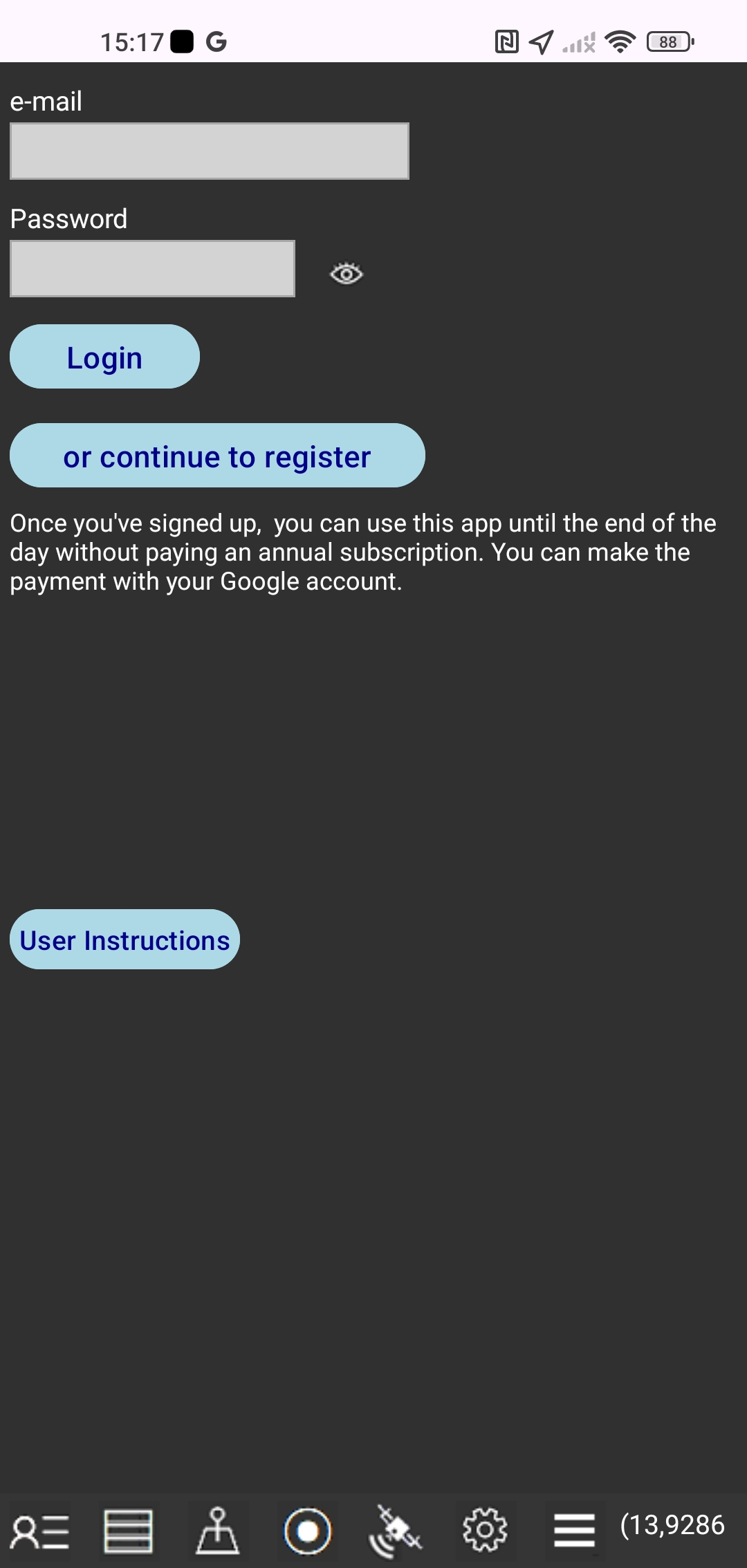 In this window you can do the following:
1. Start registering your account
Tap the "or continue to register" button and a new registration window will appear.
2. Transfer license from old to new smartphone
Enter the login information you used on your old smartphone. Login information is: e-mail and password. Tap the "Login" button. Previously, you should have deactivated your license on your old smartphone.
REGISTERING A USER ACCOUNT
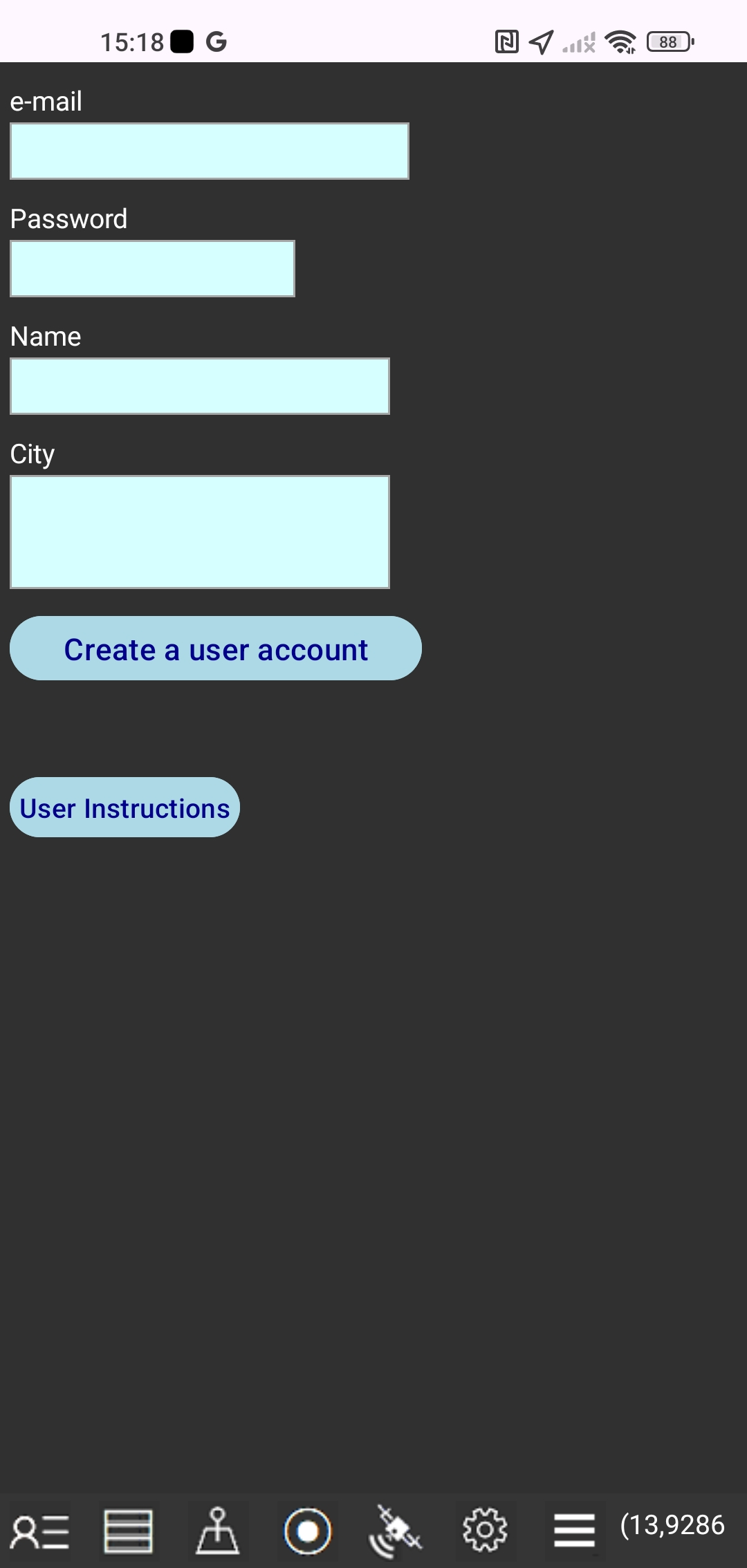 At the first start of the app you will have the option to sign up for a user account with the following data that you need to enter: your e-mail address and password, your name and address.
Your e-mail address and password are tied to your smartphone only and your email address and password can not be used to sign in to the Gps Parcela Drone app on another smartphone or tablet. We will never share your information with third parties.
Tap "Create a user account" button.
You need the account only if you want to subscribe for usage of Gps Parcela Drone app for your land parcels using geoportal reference coordinates.
After signing up for the user account, you can use until the end of the day all the app functions without paying an annual subscription.
LOGIN
Tap the User icon again to see changes to your payment status.
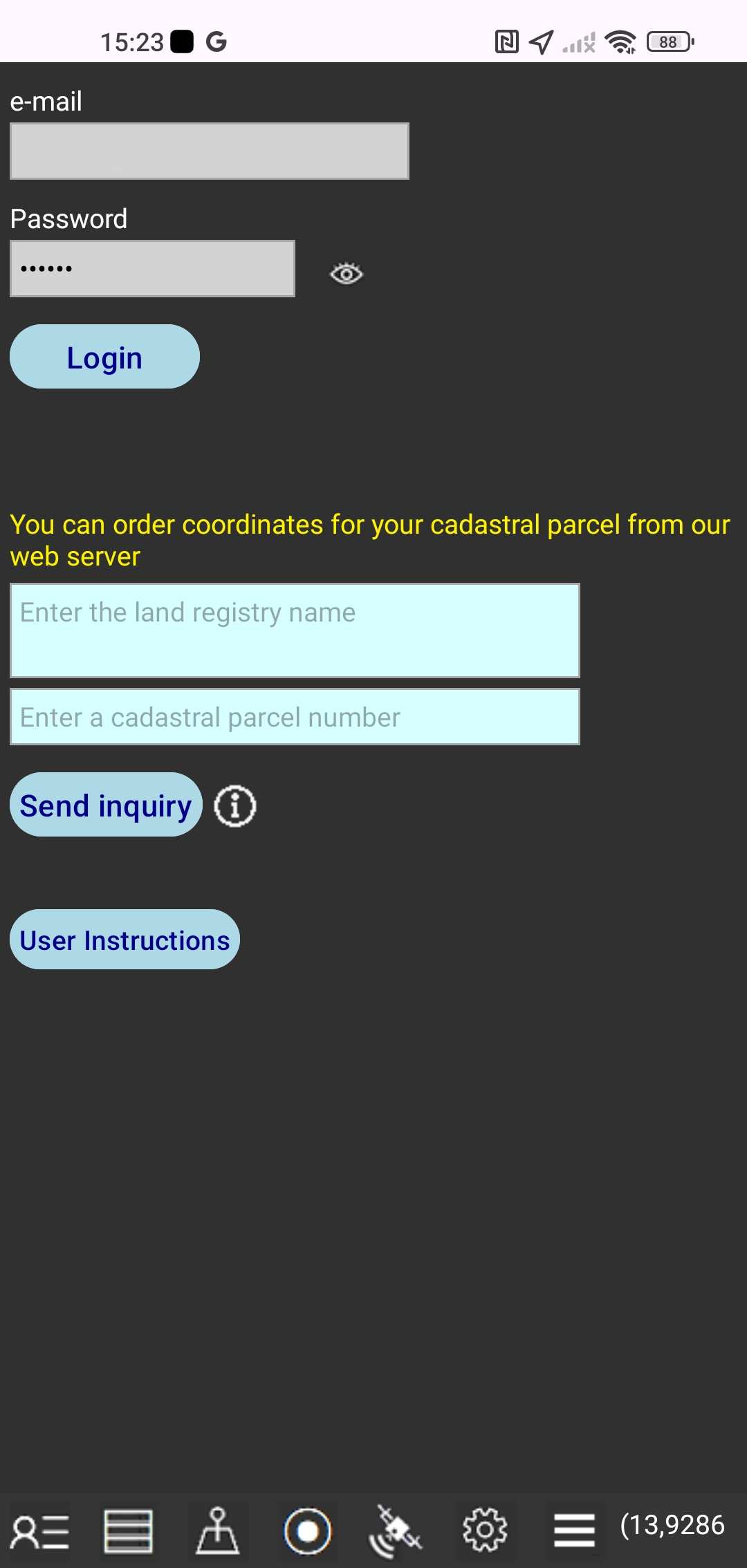 Once we receive your payment, you'll be able to fully use the app.
Tap the "Login" button to let the app change your payment status.
After that, you'll see the message with the validity end date of your user account.
You can also order coordinates for your cadastral parcel from our web server.
This is an additional service we provide to help you use this app.
Enter the full name of the cadastral municipality and the cadastral parcel number.
Tap the "Send inquiry" button and this will automatically send your request to our email.
The subscription price to use the Gps Parcela Drone app does not include the download of files with coordinates of your land parcels from our web server.
You can create the files with coordinates by yourself in the app using the User Instructions: HOW TO ENTER LAND PARCEL COORDINATES and HOW TO GET COORDINATES
However, in order to make it easier to start using the Gps Parcela Drone app, after payment you can send us an inquiry with the number of one of your land parcels and with the name of the cadastral municipality, and we will send you the coordinates of that parcel for free, as a file that you can download directly into the app, provided that we can read the coordinates from the geoportal which is supported by the Gps Parcela Drone app, according to the terms of the User Instructions
SETTINGS
Tap the Settings icon
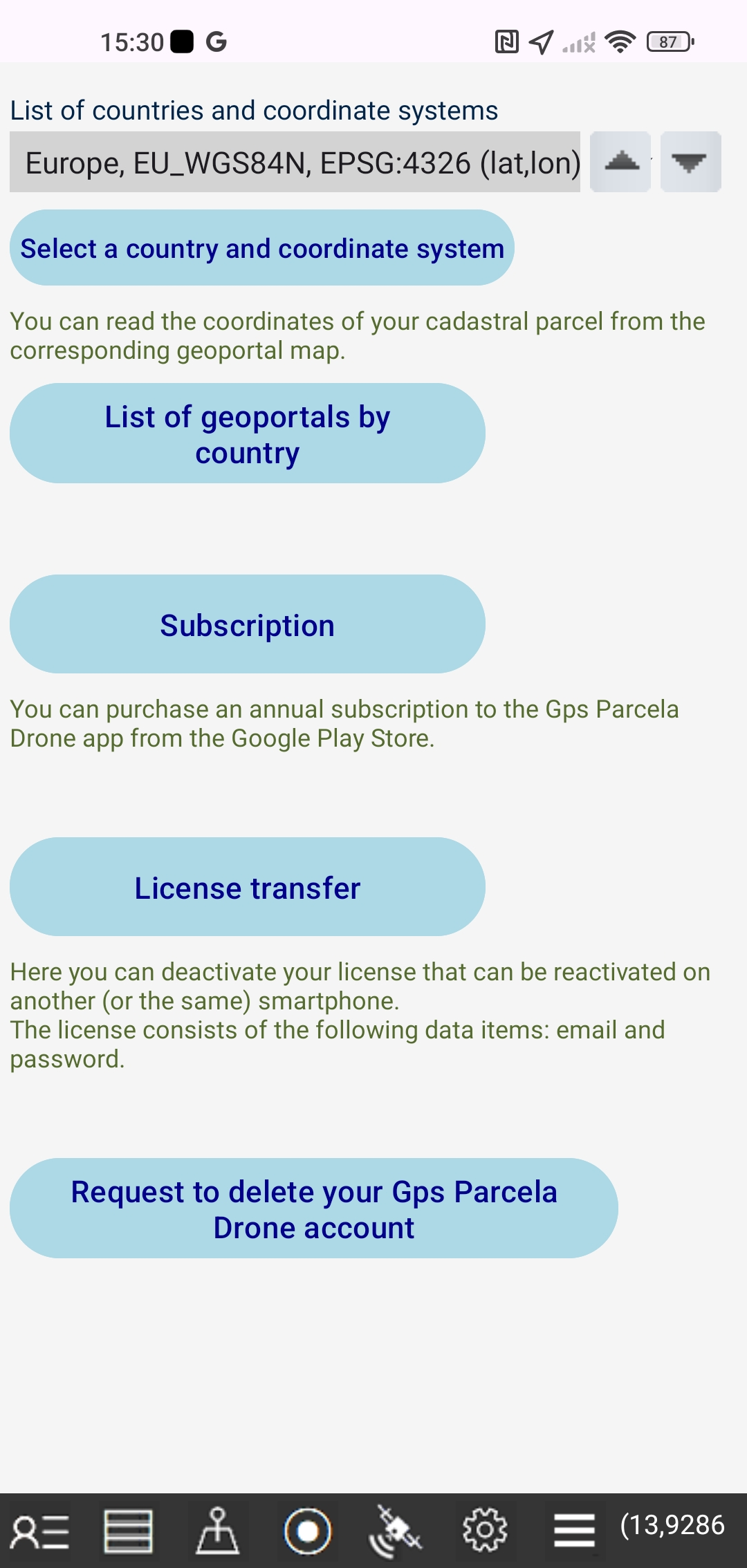 Select a country and a reference coordinate system for your land parcels.
The list of countries supported by this app is shown at the end of this guide. The list of countries is a drop down list.
Tap the "List of geoportals by country" button and a web page with a list of geoportals will appear.
Tap the "License transfer" button and you will deactivate your license that can be reactivated on another (or the same) smartphone. The license consists of the following data items: email and password.
You can activate a deactivated license on another smartphone by entering your email and password when registering a user account and then tapping the "Login" button.
To restore the license to the first smartphone, tap the "License Transfer" button again on the second smartphone, then tap the "Login" button on the first smartphone.
If you are returning licenses to the second smartphone, tap the "License Transfer" button on the first smartphone again, and then tap the "Login" button on the second smartphone.
Tap the "Subscription" button and a window will appear in which you can purchase a subscription to the Gps Parcela Drone app in the Google Play Store using the payment method from your Google account.
Tap the button "Request to delete your Gps Parcela Drone account" to send us a request to delete your Gps Parcela Drone account.
MENU
Tap the Menu icon
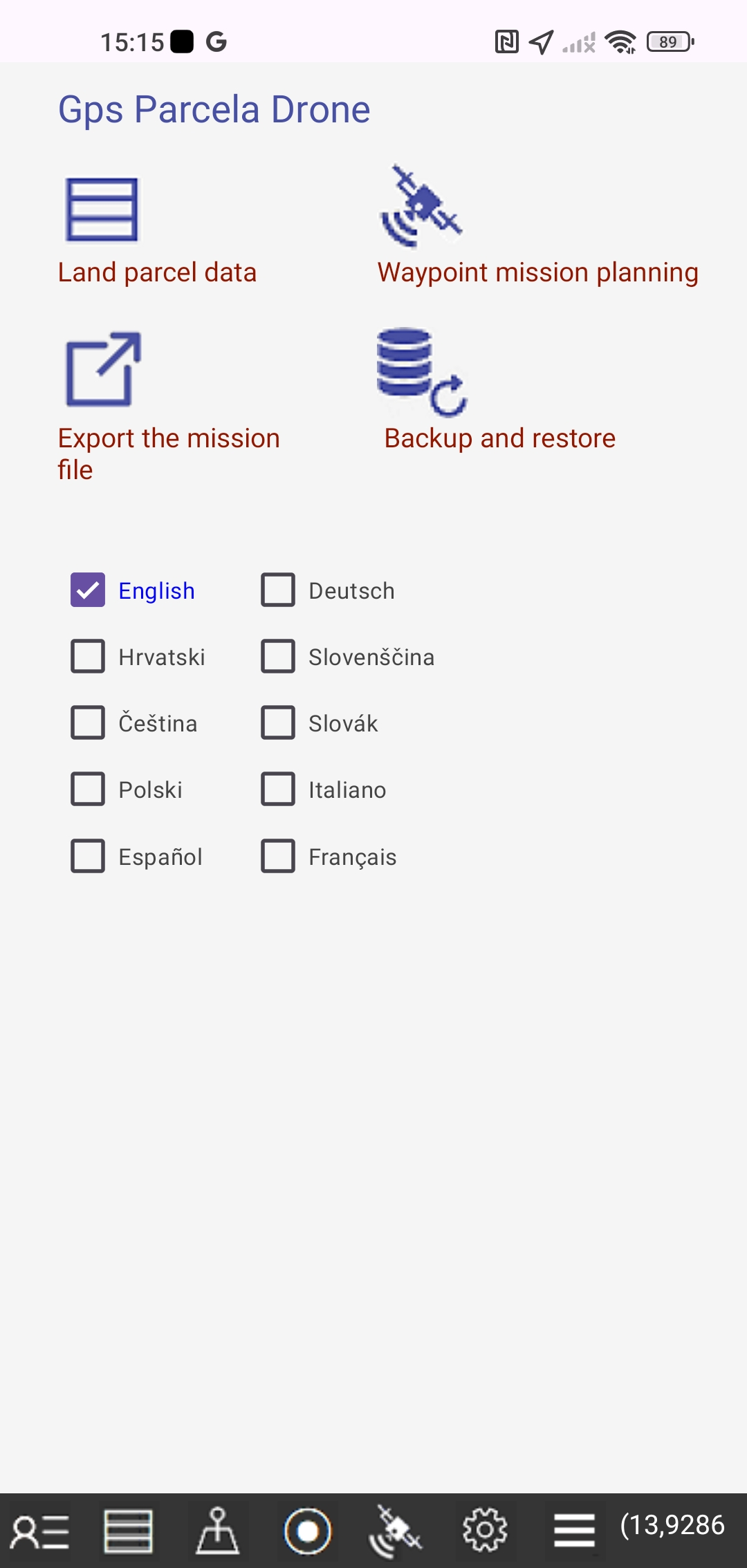 - Tap the "Land parcel data" button or the Data icon to edit the land parcel data in a new window.
- Tap the "Waypoint mission planning" button and a new window will appear.
- Tap the "Export the mission file" button and a new window will appear.
- Tap the "Backup and Restore" button and a new window will appear in which you can back up and restore files.
Select one of the following languages: English, German, Croatian, Slovenian, Czech, Slovak, Polish, Italian, Spanish, French. The default language is English.
WAYPOINT MISSION PLANNING
Tap the Menu icon and the "Waypoint mission planning" button
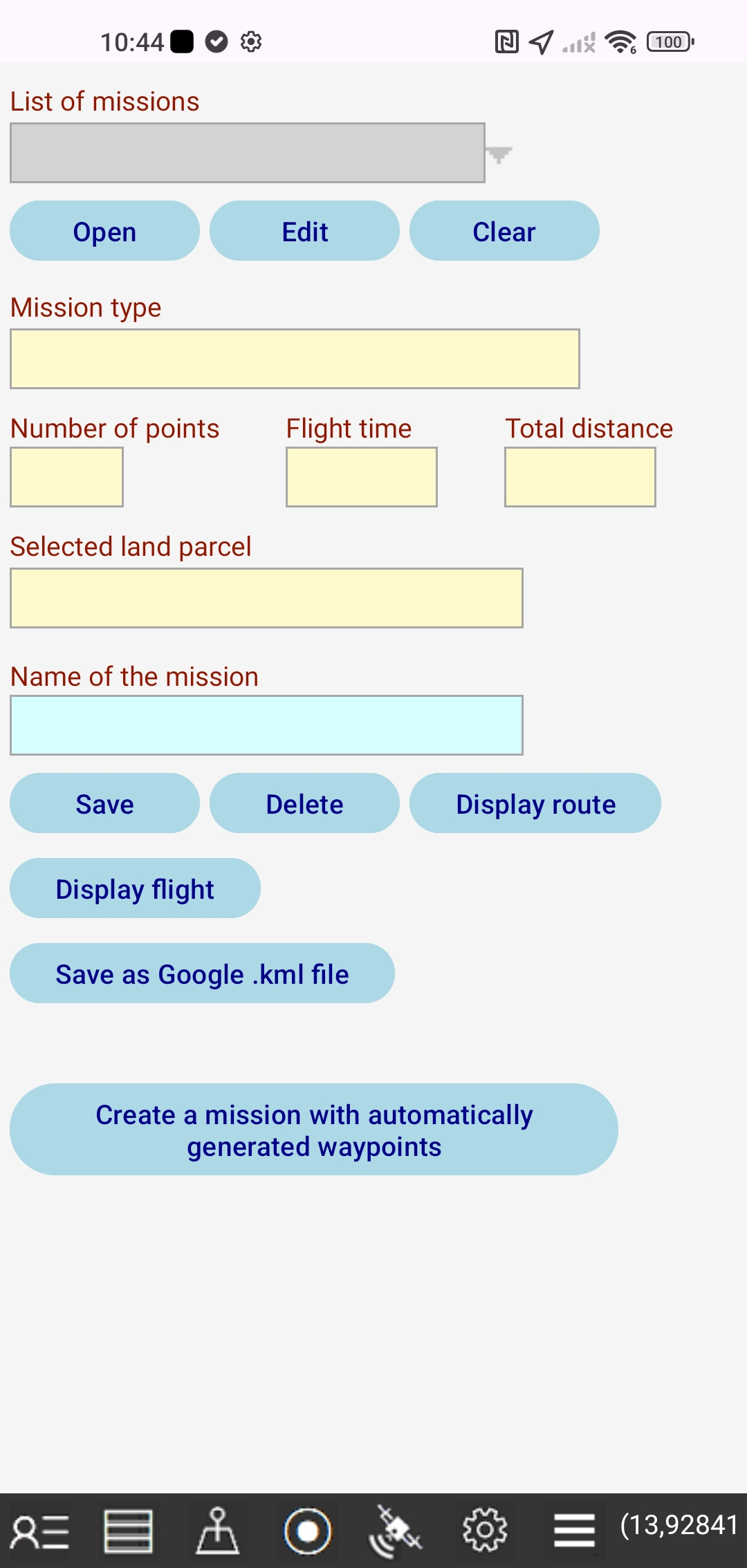 A drone waypoint mission is a predefined flight path that allows the drone to fly autonomously.
Each waypoint is defined by latitude and longitude and parameters such as altitude, speed, gimbal angle, camera action, and so on.
Mission planning includes:
-creating a mission with automatically generated waypoints
-editing mission parameters
-saving the mission as a file
-viewing the drone's route and flight on a map
-saving the mission to a Google KML file that can be further shared
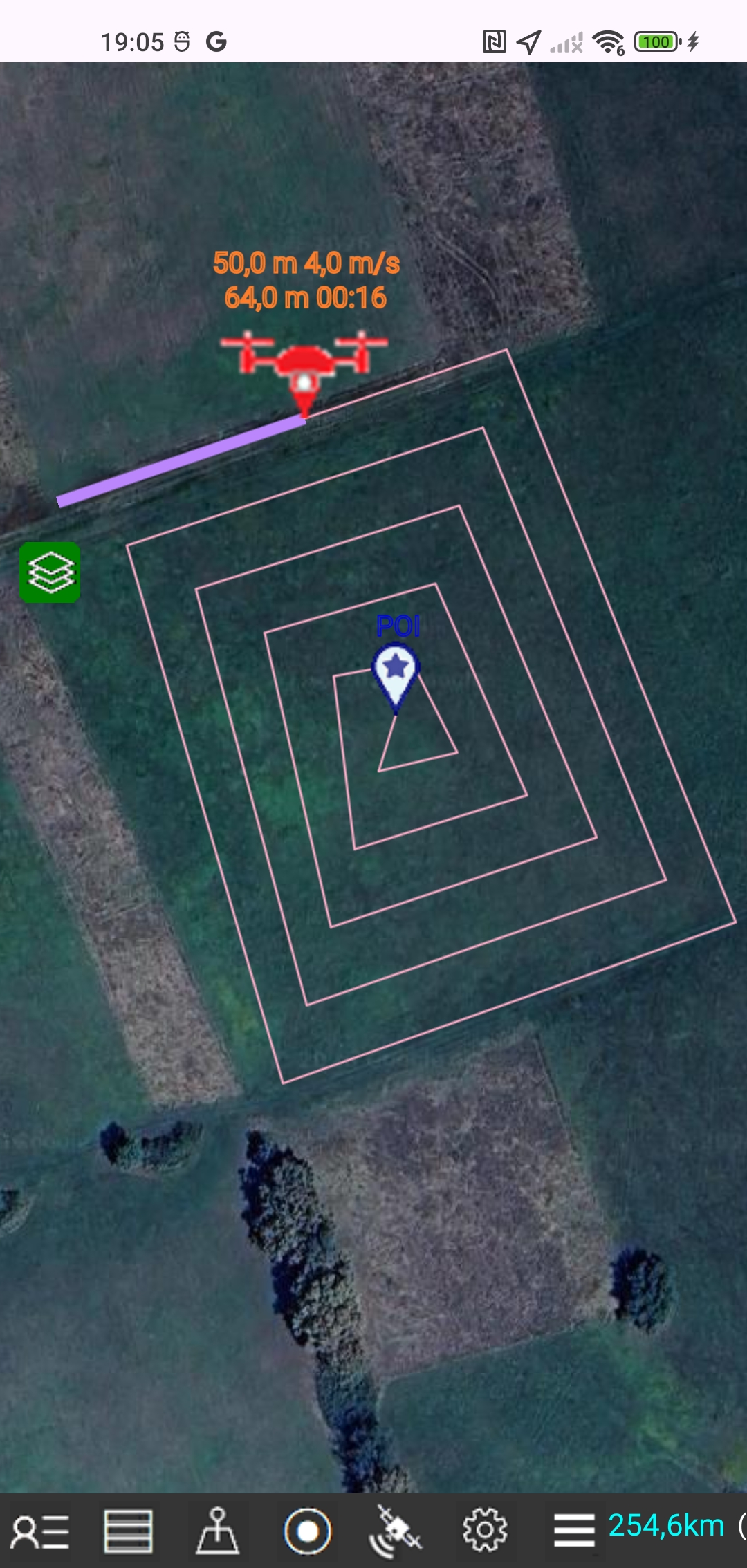
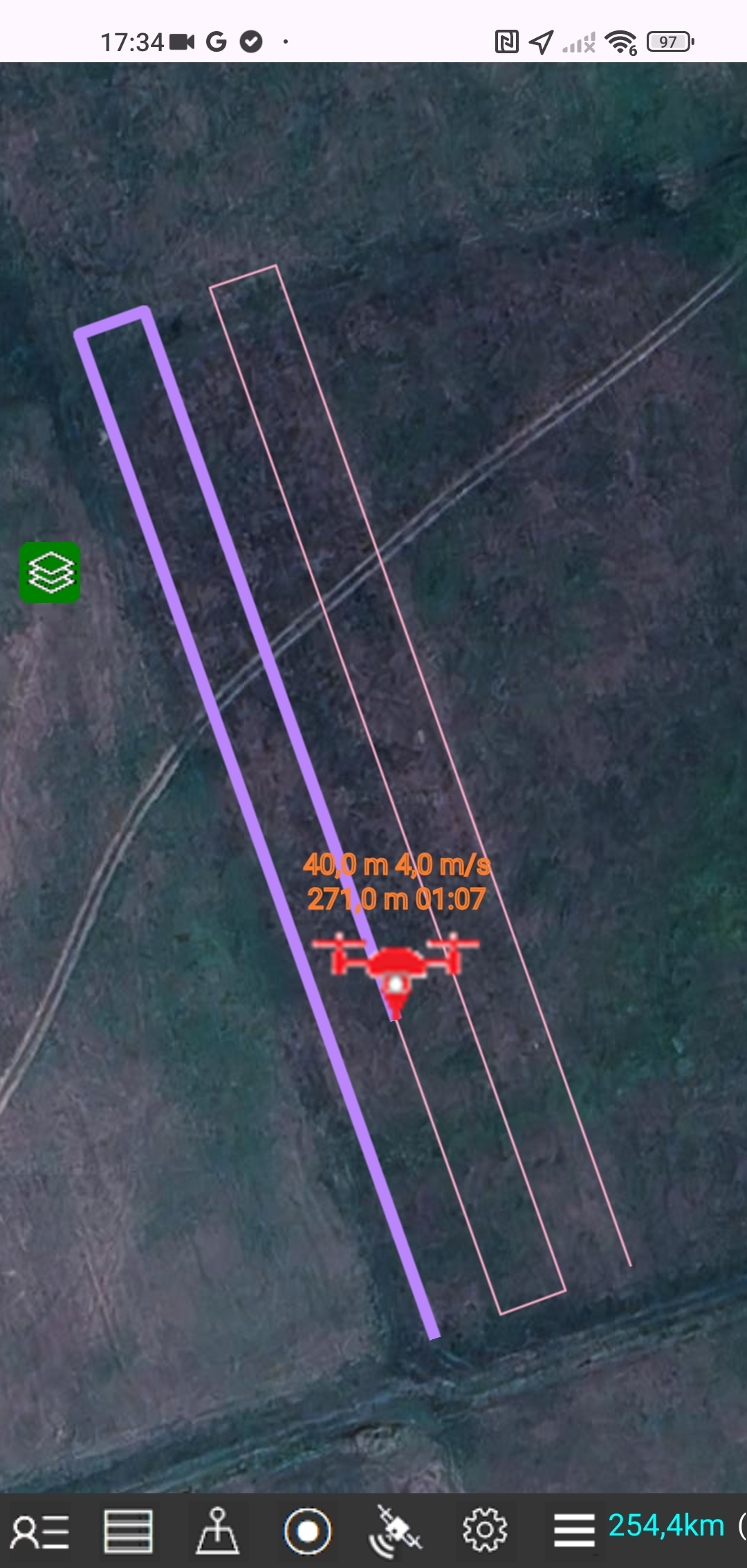
The display of the drone's route on the map includes the calculation and display of the locations of each waypoint with its serial number and altitude, as well as the flight distance and elapsed time between each two adjacent points.
During the drone flight display, a drone icon will appear on the map, following the drone's path in real time at real speed.
The drone's location, altitude and speed are displayed every second, along with the flight distance and elapsed time.
CREATE A MISSION WITH AUTOMATICALLY GENERATED WAYPOINTS
Tap the Menu icon, tap the "Waypoint mission planning" button and the "Create a mission with automatically generated waypoints" button
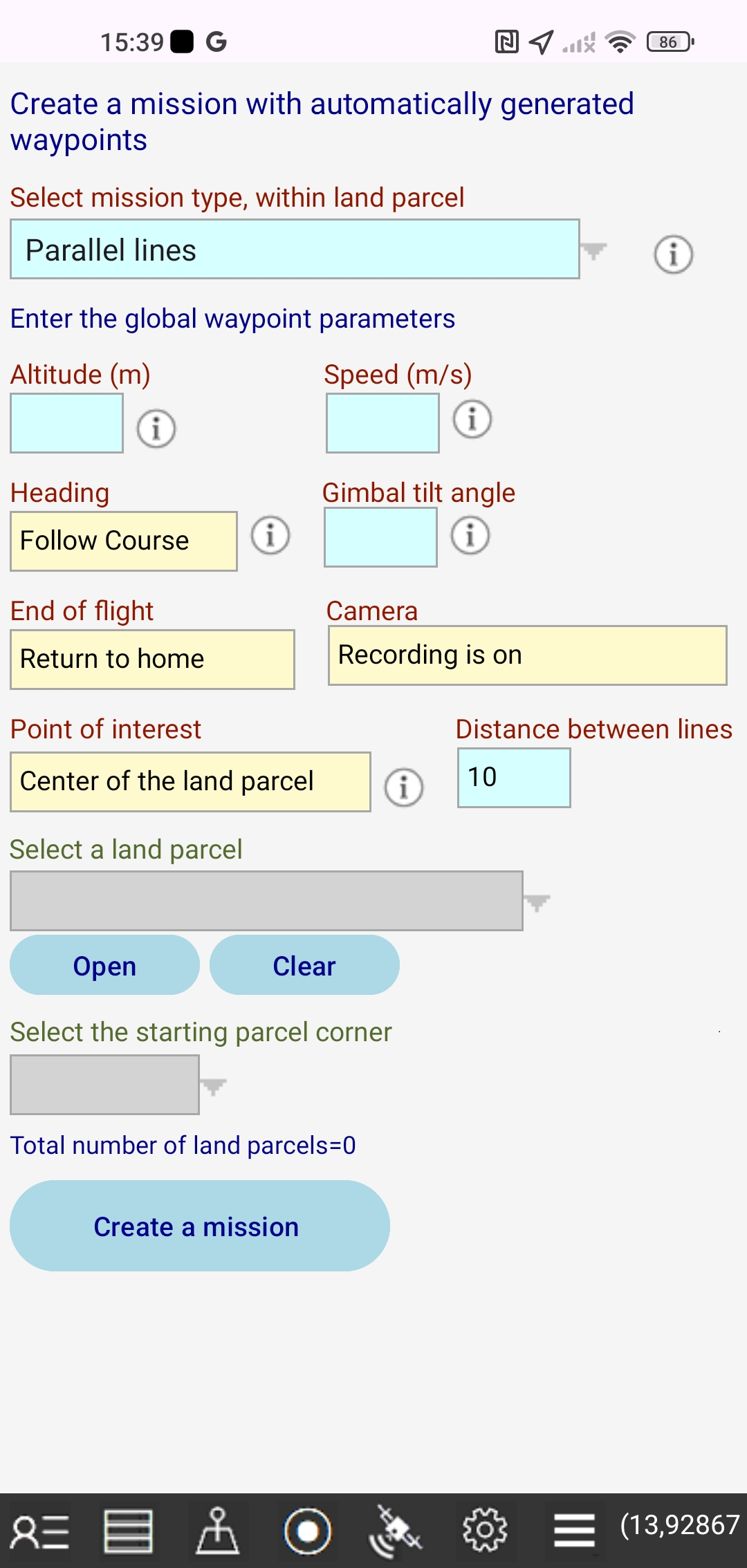 First, select a mission type.
The following four types are available:
-1. Parallel lines
The mission route consists of parallel lines that run up and down, parallel to the first line that connects the first and second route points. The distance between the lines is about 10 m.
This type of mission is only possible for a parcel whose polygon is convex, i.e. a polygon whose all interior angles are less than 180°
-2. Spiral lines
The mission route consists of spiral lines that start with the land parcel boundary lines. The distance between the lines is about 10 m. The last route point ends at the land parcel center point (POI).
-3. Concentric lines
The mission route consists of concentric lines that start with the land parcel boundary lines, and each subsequent interior concentric line has a reduced shape of the land parcel. The distance between the lines is about 10 m. The last route point ends at the land parcel center point (POI).
-4. Point of interest and boundary lines
The mission route consists of the land parcel boundary lines so that the camera looks at the land parcel center point (POI) throughout the flight. The last point is equal to the first point.
After that, enter the global waypoint parameters: altitude, speed, gimbal tilt angle.
The other parameters ( Heading, End of flight, Camera, Point of interest ) are predefined.
In this case, the POI-Point of Interest is the center of the land parcel, which is automatically calculated as the centroid of the land parcel polygon.
Initially all waypoints parameters are set to global values. Later you can modify the parameters for each specific waypoint.
Finally, select a land parcel and the starting corner point of the parcel, as waypoints will be automatically generated within the boundaries of the selected parcel.
Save the created mission to a file.
EDIT MISSION
Tap the Menu icon, tap the "Waypoint mission planning" button and the "Edit" button
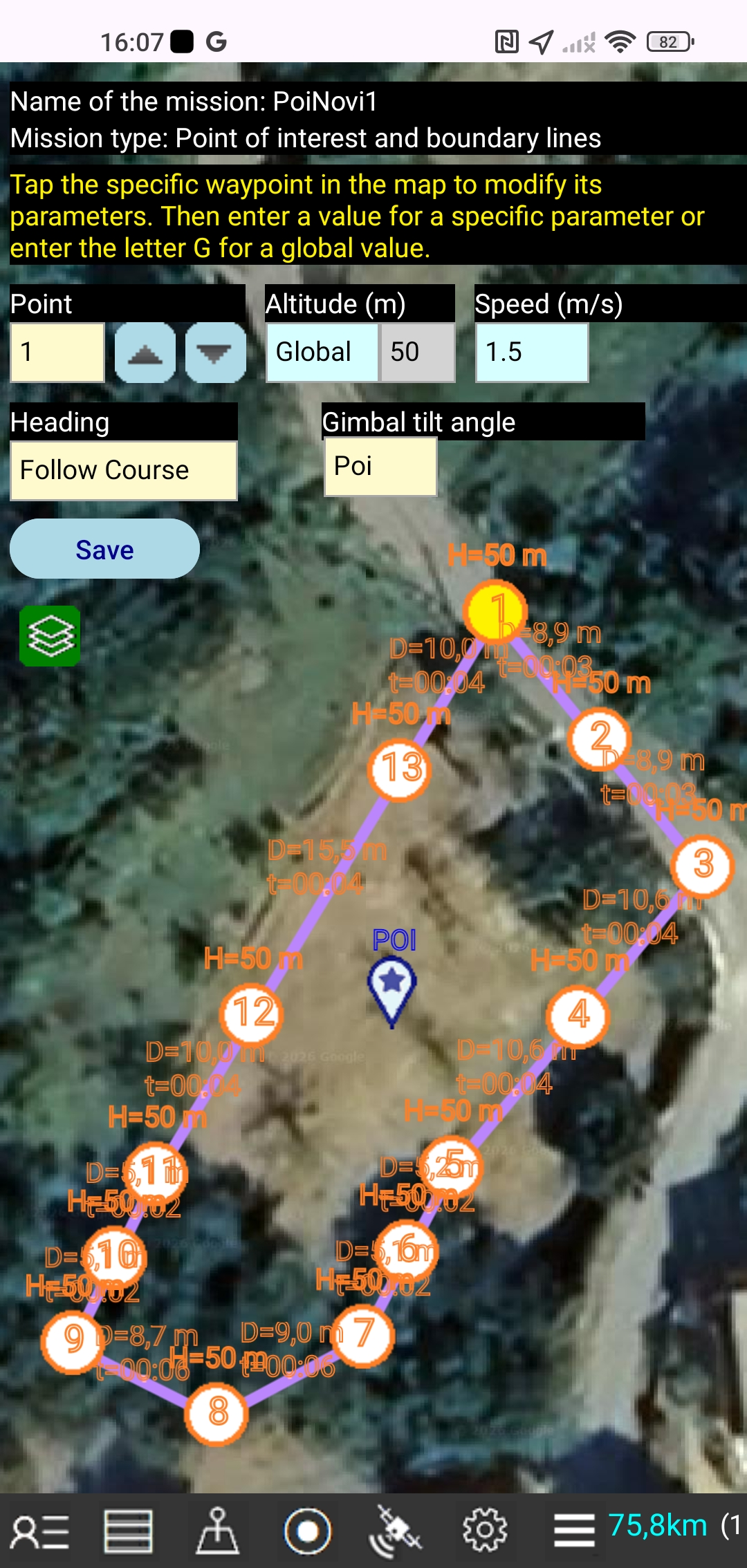 You can edit the global parameters of an open mission.
You can also edit the parameters for each specific waypoint on the map.
Tap the specific waypoint in the map to modify its parameters.
You can set the altitude globally for all waypoints in a mission, but you can also set the altitude for a specific waypoint. The altitude for a waypoint is relative to the ground level from which the drone took off. It is not the altitude above sea level.
You can set the speed globally for all waypoints in a mission, or you can set the speed for a specific waypoint. The drone will fly at the set speed through the waypoint.
A drone gimbal is a camera mount that allows the camera to move up and down according to the set gimbal tilt angle.
At an angle of 0°, the camera looks straight ahead, while at an angle of -90°, the camera looks down.
If a POI parameter is set for the gimbal, the camera will automatically look at a POI-point of interest.
The heading parameter controls the direction in which the drone's nose is pointed.
If the heading parameter is set to POI, the drone's nose will automatically point to a POI point of interest.
EXPORT THE MISSION FILE
Tap the Menu icon, tap the "Export the mission file" button
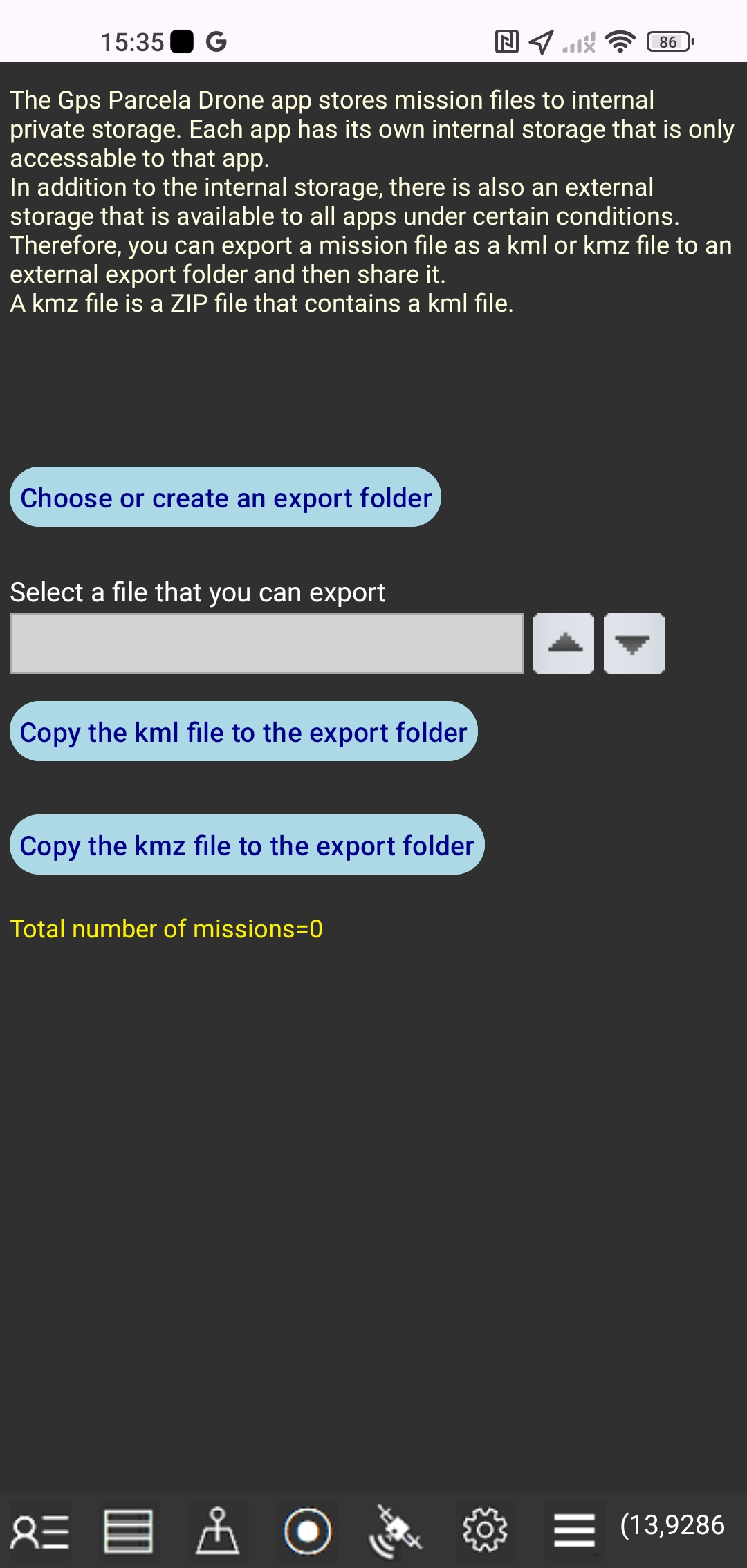 The Gps Parcela Drone app stores mission files to internal private storage.
Each app has its own internal storage that is only available to that app.
In addition to the internal storage, there is also an external storage that is available to all apps under certain conditions.
Therefore, you can export a mission file as a kml or kmz file to an external export folder and then share it.
A kmz file is a ZIP file that contains a kml file.
LAND PARCEL DATA
Tap the Data icon to edit the land parcel data in new window.
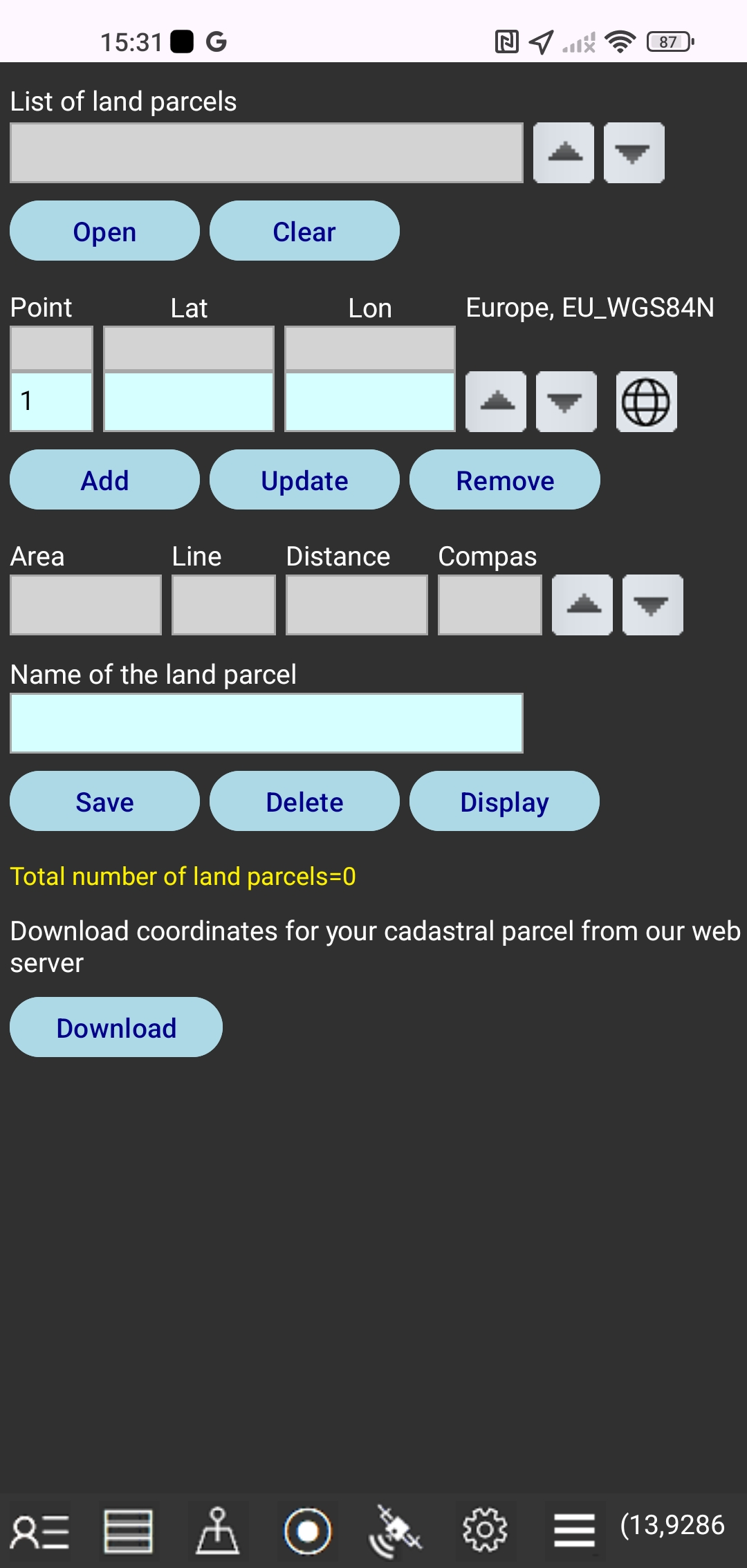 In this window you can:
create a land parcel file by entering the coordinates,
update the entered coordinates,
download the cadastral parcel coordinates from our web server,
transform the reference coordinates to Gps (WGS84) coordinates,
get the land plot area and boundary line lengths,
save the land parcel file in your local smartphone storage folder,
open a land parcel file from the local smartphone storage folder,
delete the open land parcel file from the local smartphone storage folder
close the open files with "Clear" button,
show the map of the open land parcel file.
You can open and display up to 10 land parcels simultaneously.
The name of the local storage folder is GpsParcela.
HOW TO ENTER THE LAND PARCEL COORDINATES
-First you need to read the coordinates for your parcel from the cadastral map of the geoportal for the selected country and the coordinate system.
-Tap the "Clear" button. In the light blue field under the heading "Point" number 1 will be displayed . Two light blue fields for two coordinates will be empty.
-In each of these two light blue fields you need to enter a single coordinate.
-Tap the "Add" button. The values of the coordinates you typed will be overwritten above in two gray fields. The number 2 adjacent to the "Point" heading field will appear. The adjacent two light blue fields will be empty and ready to enter the coordinates for point number two.
-Enter the coordinates for all points according to the procedure described above. Each point has its own ordinal number.
-The points with the coordinates can be moved up and down by tapping the up and down buttons.
-You can change the values of the point coordinates in light blue fields and then tap the "Update" button.
-You can remove the point from the light blue fields by tapping the "Remove" button.
-You can transform values of the coordinates in light blue fields to Gps (WGS84) coordinates by tapping the Globe icon. With the first tap, the coordinates for longitude and latitude will be shown in the decimal format and with the second tap the Gps coordinates will be shown in the clock format "degree:minute:second"
-After you have entered the coordinates for all points, type the land parcel file name into the light blue field under the heading "Name of the land parcel". Tap the "Save" button. The parcel file name will then appear in the parcel file list. The file name can contain only letters, digits, and a minus sign.
-You can see the parcel map by tapping the "Display" button or by tapping the My parcel icon.
-You can scroll up and down the list of land parcels by tapping the up and down buttons. Also the land parcels list is a drop down list.
-Tap the "Open" button, and the land parcel file name from the gray field will open, which means that the data for all points will be in the list of points.
At the same time, the value of the land plot area will be shown and the boundary line lengths will be listed under the heading "Distance".
-Name of the opened parcel file will appear in a light blue field under the heading "Name of the land parcel".
You can delete this parcel file by tapping the "Delete" button.
-Tap the "Download" button if you have ordered the cadastral parcel coordinates from our web server.
You will see a list of your ordered parcels (one or more) from our web server.
Select a name from the list and tap the "Select a land parcel" button
and your parcel file will be downloaded from our web server in your local smartphone memory.
After that, the ordered file will appear in your land parcel list.
Tap the "Display" button.
NAVIGATION TO A LAND PARCEL
display the land parcel map
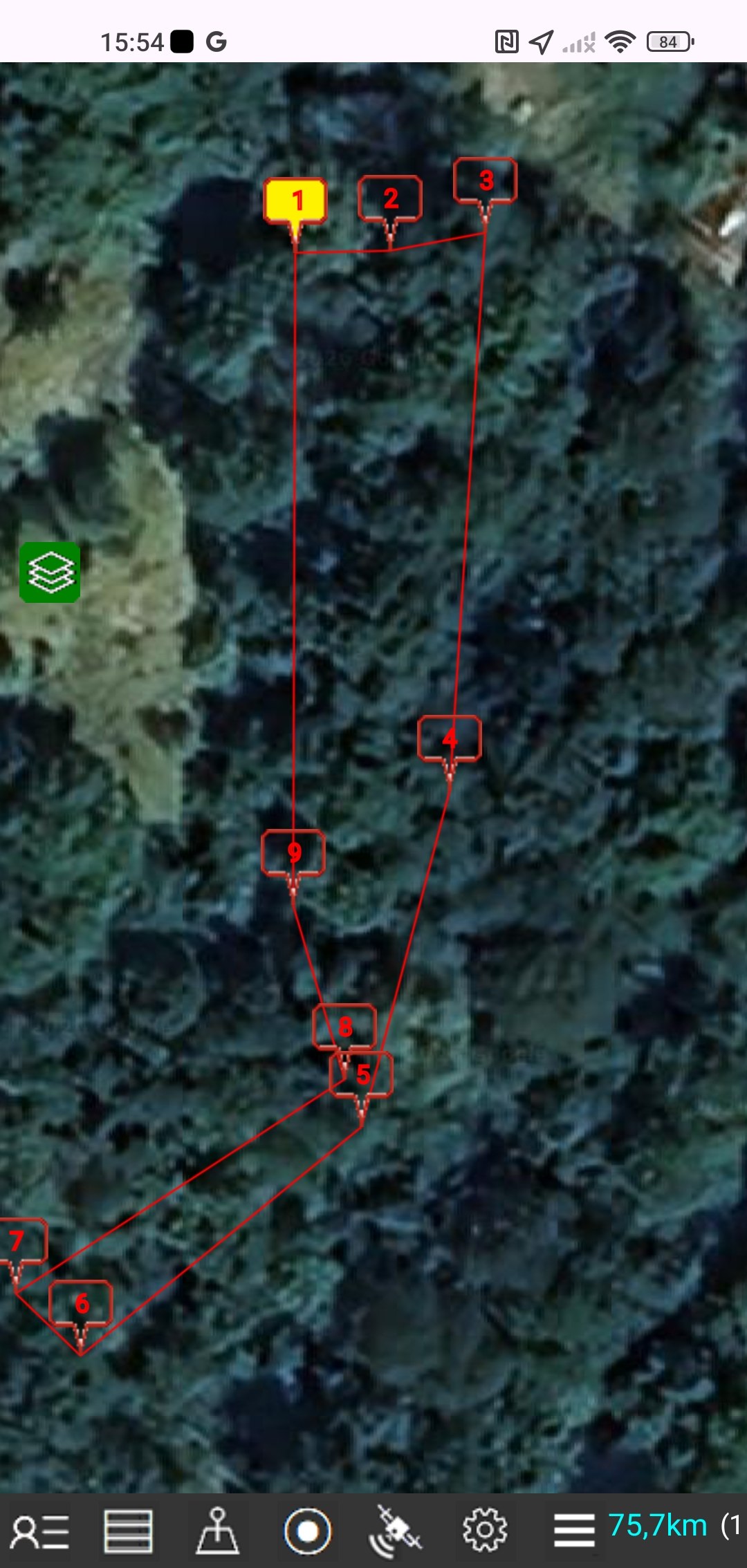 Tap the My land parcel icon to display map of the selected land parcel.
The land parcel is labeled with a yellow color marker.
Tap the My location icon to display map of my location
The current location is marked with a green marker.
However, if you stop moving (the speed is zero) then the automatic averaging for longitude and latitude in the last 10 readings of Gps points for which the accuracy is less than 5 m (for Android) starts automatically. Points with accuracy greater than 5 m are not taken into account. The location marker color becomes red and the average value for longitude and latitude is displayed in the round brackets , which results in a higher accuracy of Gps coordinates reading.
You will know with relative accuracy that you are on your land parcel when a green marker (that indicates the position of your smartphone on the map) shows that you are within the boundaries of your land parcel map.
This app can not be used for geodetic surveying.
HOW TO GET COORDINATES
of your cadastral parcel from geoportal
To precisely define the coordinates you need to use a PC or laptop with a mouse instead of a smartphone that has too little screen for this purpose.
Click on a link from the geoportal list and there you can easily get the relatively accurate reference coordinates for the cadastral parcel from the displayed cadastral map.
There are two possibilities to do so, depending on the chosen geoport.
The first possibility is to enter the full name of the cadastral municipality and the cadastral parcel number and then click on an icon that leads you to view the map of your land parcel.
The second possibility is to zoom in the displayed map until the boundaries of the parcels appear, where you can recognize your land parcel by its number.
In both cases, move the mouse over a corner point and you will be able to read on the screen the corresponding reference coordinates. Then you should enter the coordinates for each corner point into the app directly.
You need to know that the accuracy of data and maps is not absolute because it depends on a lot of factors. For example, cadastral maps on geoportals are not always absolutely accurate and usually the coordinates have a meter accuracy. Although in most cases your land plot corresponds to the real situation on the ground, it may still happen that this is not always the case, because of inaccurate input data.
BACKUP AND RESTORE
Tap the Menu icon and the "Backup and restore" button
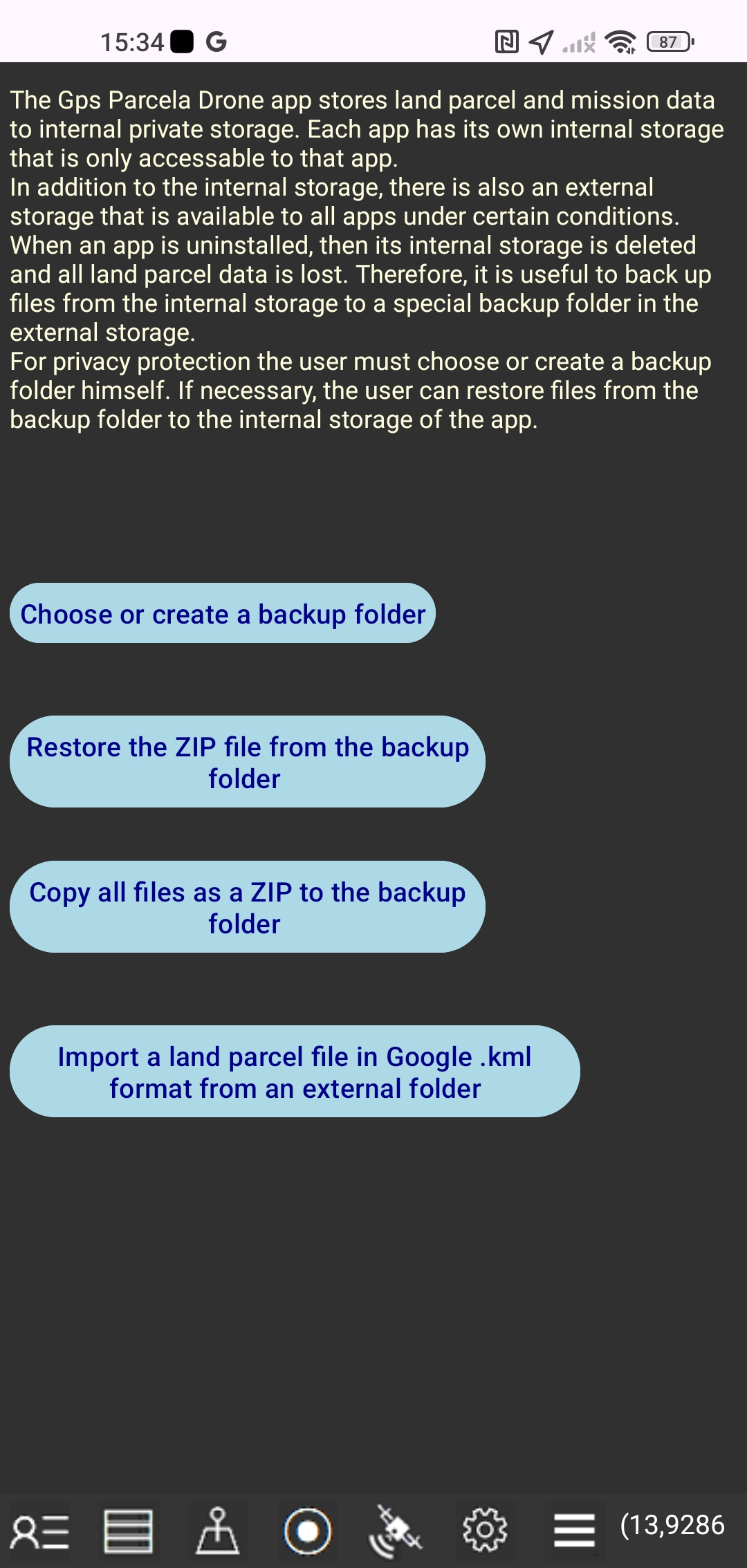 Gps Parcela Drone app stores land parcel data to internal private storage.
Each app has its own internal storage that is only available to that app.
In addition to internal storage, there is also external storage that is available to all apps under certain conditions.
When the app is uninstalled, its internal storage is deleted and all mission and land parcel data is lost.
Therefore, it is useful to back up files from internal storage to a separate backup folder in external storage.
For privacy protectin, the user must create or select a backup folder himself.
If necessary, the user can restore files from the backup folder to the internal storage of the app.
Gps Parcela Drone app stores land parcel data to internal private storage.
Each app has its own internal storage that is only available to that app.
In addition to internal storage, there is also external storage that is available to all apps under certain conditions.
When the app is uninstalled, its internal storage is deleted and all mission and land parcel data is lost.
Therefore, it is useful to back up files from internal storage to a separate backup folder in external storage.
For privacy protectin, the user must create or select a backup folder himself.
If necessary, the user can restore files from the backup folder to the internal storage of the app.
First you need to choose an existing folder or create a new folder.
Then tap the "Copy all files as a ZIP file to the backup folder" button or the "Restore the ZIP file from the backup folder" button.
The ZIP file name is "Zipped_Parcela_Drone_Files" with the date.
You can also Import a land parcel file in Google .kml format from an external folder.
LIST OF GEOPORTALS
supported by the Gps Parcela Drone appTo precisely define the coordinates you need to use a PC or laptop with a mouse instead of a smartphone that has too little screen for this purpose.
| Country | coordinate system |
epsg | Link to cadastral geoportal |
|---|---|---|---|
| Austria |
UTM33N | 32633 | https://basemap.at// |
| Belgium |
Lambert08 | 3812 | https://www.geo.be/ |
| Bosnia and Herzegovina |
GK zone 6 | 3908 | http://www.katatar.ba/ |
| Bulgaria |
UTM35N | 32635 | https://kais.cadastre.bg/ |
| Croatia |
HTRS96/TM | 3765 | https://oss.uredjenazemlja.hr/ |
| Czech Republic |
TM33 TM34 |
3045 3046 |
https://geoportal.cuzk.cz/ |
| Estonia |
WGS84 | 4326 | http://xgis.maaamet.ee/ |
| France | Geographique | 4326 | https://www.geoportail.gouv.fr/ |
| Germany |
UTM32 UTM33 |
25832 25833 |
https://www.geoportal.de/ |
| Italy |
UTM32 UTM33 |
25832 25833 |
https://geoportale.cartografia.agenziaentrate.gov.it/ |
| Latvia |
LKS92 | 3059 | https://www.kadastrs.lv/ |
| Lithuania |
LKS94 | 3346 | https://www.geoportal.lt/ |
| Montenegro |
UTM34N | 32634 | https://geoportal.co.me/Geoportal01/ |
| North Macedonia |
MSCS7 | 6316 | https://ossp.katastar.gov.mk/ |
| Poland |
CS92 | 2180 | http://mapy.geoportal.gov.pl/ |
| Portugal |
PT-TM06 | 3763 | http://mapas.dgterritorio.pt/cadastro/viewer.html |
| Serbia |
UTM34N | 32634 | https://a3.geosrbija.rs/ |
| Slovakia |
TM34 | 25834 | https://zbgis.skgeodesy.sk/ |
| Slovenia |
D96/TM | 3912 | http://rkg.gov.si/ |
| Spain |
UTM31 UTM30 UTM29 |
25831 25830 25829 |
https://www.sedecatastro.gob.es/ |
| Switzerland |
WGS84 | 4326 | https://map.geo.admin.ch/ |
The federal states of Austria have their own cadastral geoportals.
The regions of Italy have their own cadastral geoportals.
Note:
These user instructions apply to Android Gps Parcela Drone version 3.